
One of the most frustrating situations for WordPress website owners is suddenly losing access to the dashboard after updating a plugin. Everything may appear normal one moment, and then after a routine update, the WordPress admin panel stops loading, shows an error, or becomes completely unavailable.
For many business owners, this situation is confusing. They may notice that the website looks unusual, loads partially, or displays a blank page. In some cases, the website’s front-end may still work, but the WordPress dashboard becomes inaccessible, making it impossible to edit content, publish updates, or manage the site.
This issue happens more often than most people realize. In many WordPress environments, especially those with multiple plugins installed, updates can occasionally create conflicts that prevent the dashboard from loading correctly.
Understanding why this happens and what developers usually find when troubleshooting the issue can help businesses respond quickly and prevent future disruptions.
Why Plugin Updates Sometimes Break the WordPress Dashboard
WordPress plugins are developed by thousands of different developers around the world. Each plugin adds new functionality to a website, but they often interact with the same underlying system.
When a plugin update is installed, it may introduce changes that affect how the plugin interacts with:
- the WordPress core software
- other plugins installed on the website
- the active WordPress theme
- the server’s PHP version or configuration
If two plugins attempt to modify the same function or load incompatible scripts, a conflict can occur, which may prevent the WordPress admin area from loading properly.
Sometimes the conflict causes visible errors. Other times the dashboard simply shows messages such as “Not available,” “Error establishing database connection,” or a blank page.
These situations can appear alarming to site owners, especially when they occur unexpectedly after what seemed like a routine plugin update.
The Most Common Signs of a Dashboard Failure
When plugin conflicts affect the WordPress dashboard, several symptoms may appear.
Some website owners experience one or more of the following problems:
The WP Admin Page Shows a Blank Screen
One of the most common scenarios is the white screen problem, where the admin page loads but displays no content.
This often occurs when a plugin triggers a fatal PHP error during loading.
The Login Page Works, But the Dashboard Doesn’t Load
In some cases, users can still access the login screen and enter their credentials, but once they log in, the dashboard fails to appear or redirects to an error page.
The Admin Area Displays “Not Available” or Similar Errors
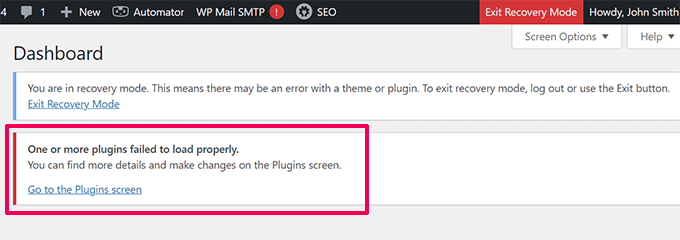
Some hosting environments display simple error messages when plugin conflicts interrupt the dashboard’s functionality.
This can resemble the screenshot example shown earlier, where the dashboard appears unavailable despite the website still existing on the server.
The Website Front-End Still Loads
Interestingly, many plugin conflicts affect only the admin area.
This means visitors may still see the website normally, while administrators cannot access the editing interface.
Because of this, many businesses only discover the issue when they attempt to make changes to their site.
Why Business Owners Often Don’t Notice Immediately
In many real-world cases, the client does not immediately realize that something has gone wrong.
A typical situation may look like this:
- The website owner installs or updates a plugin.
- The update triggers a conflict in the WordPress environment.
- The dashboard becomes inaccessible.
- The website’s front-end continues functioning temporarily.
Since the public website may still load, the problem remains unnoticed until someone attempts to edit content or publish updates.
At that point, the business owner may realize that the dashboard cannot be accessed or edited, which usually leads to contacting a developer for assistance.
What Developers Usually Check First
When developers investigate a dashboard access issue after a plugin update, they typically start by verifying whether the issue is related to the WordPress application itself or the server environment.
The most common steps include reviewing:
- plugin updates performed recently
- server error logs
- PHP compatibility issues
- memory limits or server resource usage
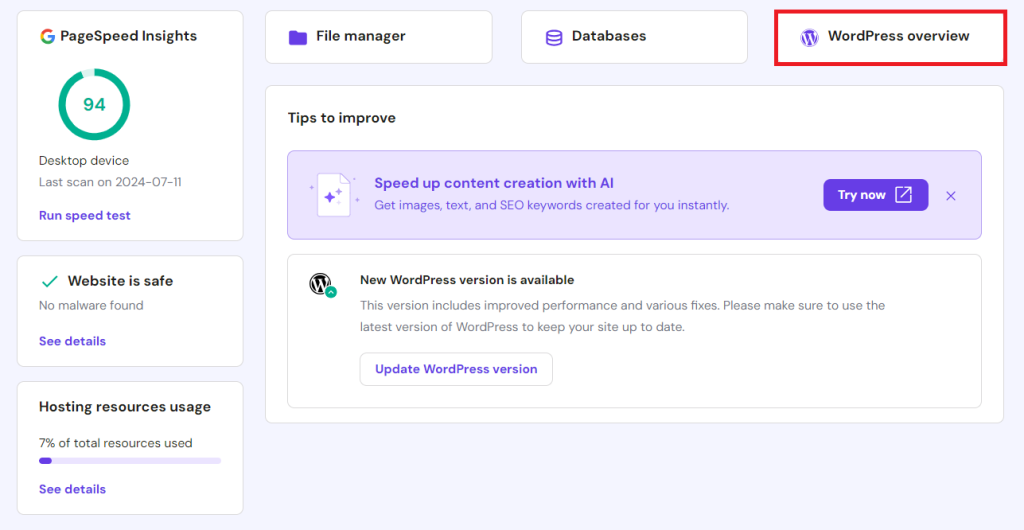
However, when the dashboard cannot be accessed through the normal interface, developers usually move to the hosting level to troubleshoot the problem.
This often involves accessing the website’s files through the hosting panel or server file manager.
Why Plugin Conflicts Are So Common
WordPress websites often rely on multiple plugins to provide different features such as:
- SEO optimization
- caching and performance
- contact forms
- security
- analytics tracking
- page builders
While each plugin may function perfectly on its own, problems can arise when multiple plugins attempt to modify similar parts of the system.
For example:
- two plugins may attempt to load the same script
- one plugin update may depend on a newer version of PHP
- a plugin may conflict with a theme’s functions
Even well-maintained websites can occasionally experience these conflicts, particularly when several plugins are updated simultaneously.
How Developers Usually Restore Access
When the WordPress dashboard becomes inaccessible, developers usually focus on identifying which plugin caused the conflict.
This often involves temporarily disabling plugins at the server level until the problematic one is located.
Once the conflict is identified, developers can:
- deactivate the plugin
- reinstall a stable version
- adjust compatibility settings
- update related plugins or themes
In some cases, the fastest solution is restoring a recent backup of the website, especially if the conflict occurred immediately after an update.
Backup restoration is one of the most effective ways to recover a site quickly while preventing further complications.
Why Regular Backups Are Essential
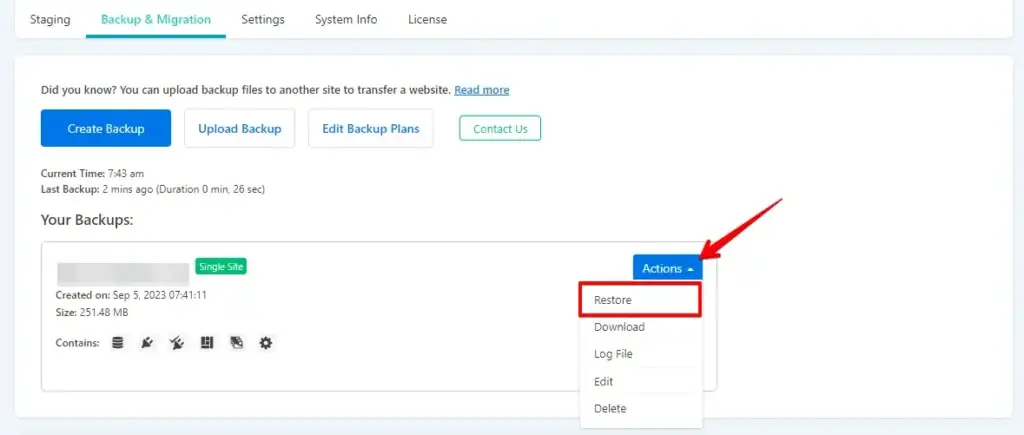
Because plugin conflicts can occur unexpectedly, reliable backups are one of the most important safeguards for WordPress websites.
With a proper backup system in place, developers can restore a functioning version of the site within minutes rather than attempting to manually rebuild broken components.
Many hosting providers offer automatic backups, but businesses should still verify that backup systems are functioning correctly.
Preventing Dashboard Failures in the Future
Although plugin conflicts cannot always be avoided completely, several best practices can significantly reduce the risk.
Limit the Number of Plugins
Many websites install dozens of plugins, sometimes performing overlapping tasks.
Reducing unnecessary plugins helps minimize compatibility risks.
Update Plugins Carefully
Instead of updating many plugins simultaneously, it is often safer to update them gradually and monitor the site afterward.
Maintain WordPress and PHP Compatibility
Ensuring that the WordPress core, plugins, and server environment remain compatible is essential for stable performance.
Use Reliable Backup Systems
Automated backups provide a safety net in case updates cause unexpected problems.
Perform Periodic Maintenance Checks
Regular website maintenance allows developers to identify outdated plugins, compatibility risks, and performance issues before they cause major disruptions.
Why Professional WordPress Maintenance Matters
For many businesses, the WordPress dashboard is the primary tool used to manage website content, marketing pages, and updates.
When access to that dashboard disappears, it can interrupt marketing efforts, delay updates, and create unnecessary stress for business owners.
Because WordPress websites rely on many moving parts—including plugins, themes, server environments, and security configurations—ongoing maintenance plays an important role in keeping everything running smoothly.
Developers who regularly monitor plugin updates and compatibility issues can often prevent conflicts before they affect the site.
Final Thoughts
Losing access to the WordPress dashboard after a plugin update can feel alarming, especially for business owners who rely on their website for daily operations.
However, in most cases the issue is caused by a plugin conflict or compatibility problem, which developers encounter regularly when managing WordPress websites.
Understanding the warning signs, maintaining proper backups, and following good update practices can significantly reduce the likelihood of these problems occurring.
And when issues do arise, having access to experienced WordPress support ensures the website can be restored quickly and safely.